Event Agenda Setup
The agenda is where rooms, tracks and sessions come together as a calendar — and where the platform's matching engine gets the metadata it needs (timeslot priority, service tags, attendee-type rules) to schedule 1-to-1 meetings automatically. This module covers the calendar UI, the per-session editor, and the system-level rules that define what a "1-to-1" actually means at this event.
1. The Session Agenda Calendar 00:00 – 00:30
Rooms across the top, time down the side — your event's day in one view.
Narrator · 00:00 – 00:30 In this session we discuss the programs and meeting tracks, with the emphasis on the event agenda definition. Here you have a calendar listing all the rooms used for presentations or meetings, and you can also define tracks if you use that feature on your events.
The Session Agenda page (left rail → Event Agenda) puts every session on a wall-calendar grid: rooms as columns, time as rows. Each session is a coloured block sitting at its room/time intersection.
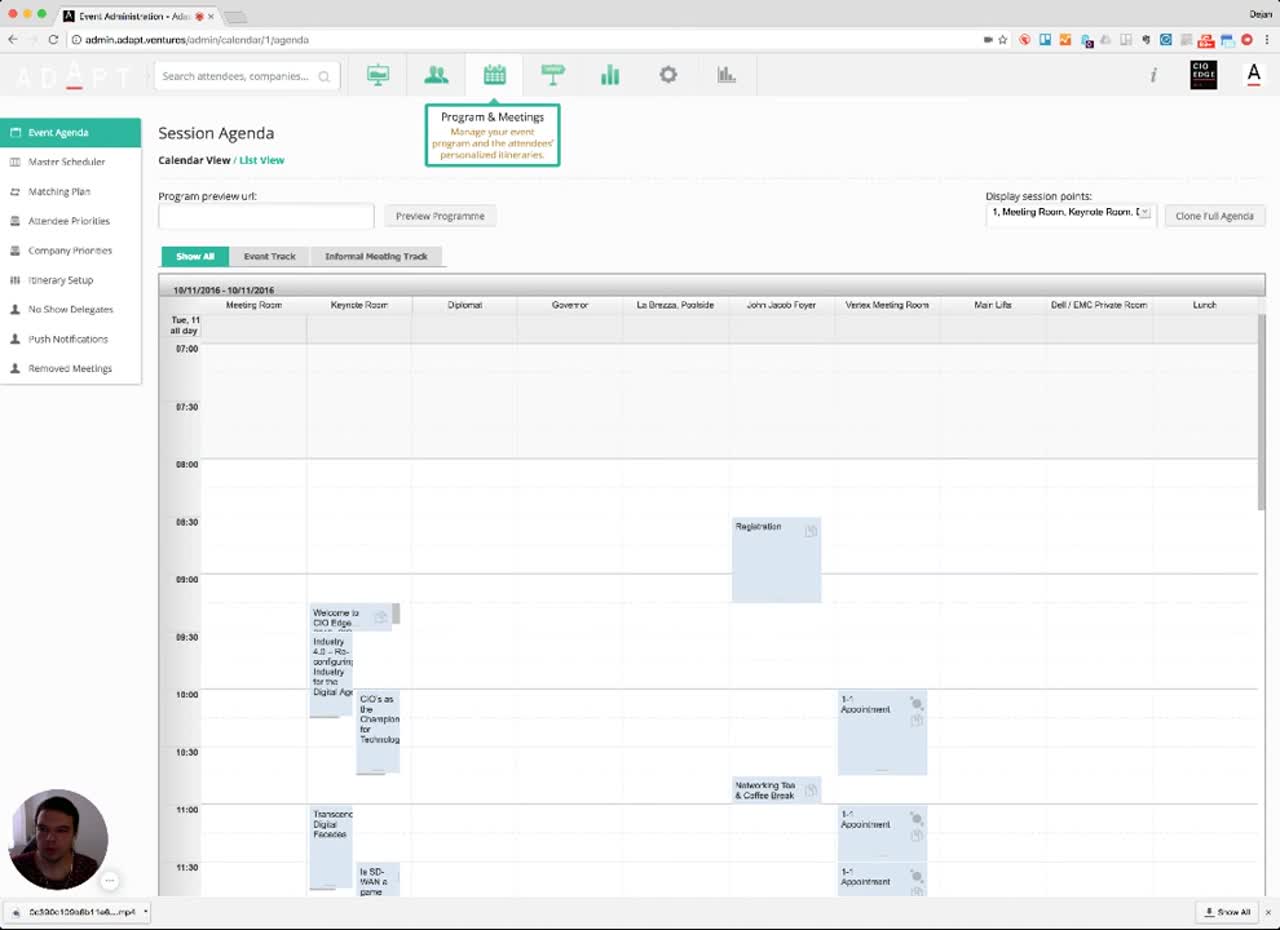
Around the calendar:
- Calendar View / List View toggle at the top — switch between the wall view and a flat list.
- Show All / Event Track / Informal Meeting Track tabs — quickly filter the calendar by track.
- Clone Full Agenda button (top right) — duplicate the entire agenda elsewhere.
- Event-context left rail for agenda work: Event Agenda, Master Scheduler, Matching Plan, Attendee Priorities, Company Priorities, Itinerary Setup, No Show Delegates, Push Notifications, Removed Meetings.
2. Filters & Public Programme URL 00:30 – 01:05
Filter the calendar to specific rooms, or publish the programme as a public URL.
Narrator · 00:30 – 01:05 There is a filtering option to filter on specific rooms, or you can put a URL if you want to publish that for your sales purposes — so it's only available through the web. From here on the calendar, depending on the date and time set for your event, you have a full preview of the agenda. If you double-click a particular one, it opens up a new tab with all the information given — the title, the meeting place, times, and tracks if you want to assign that to more tracks.
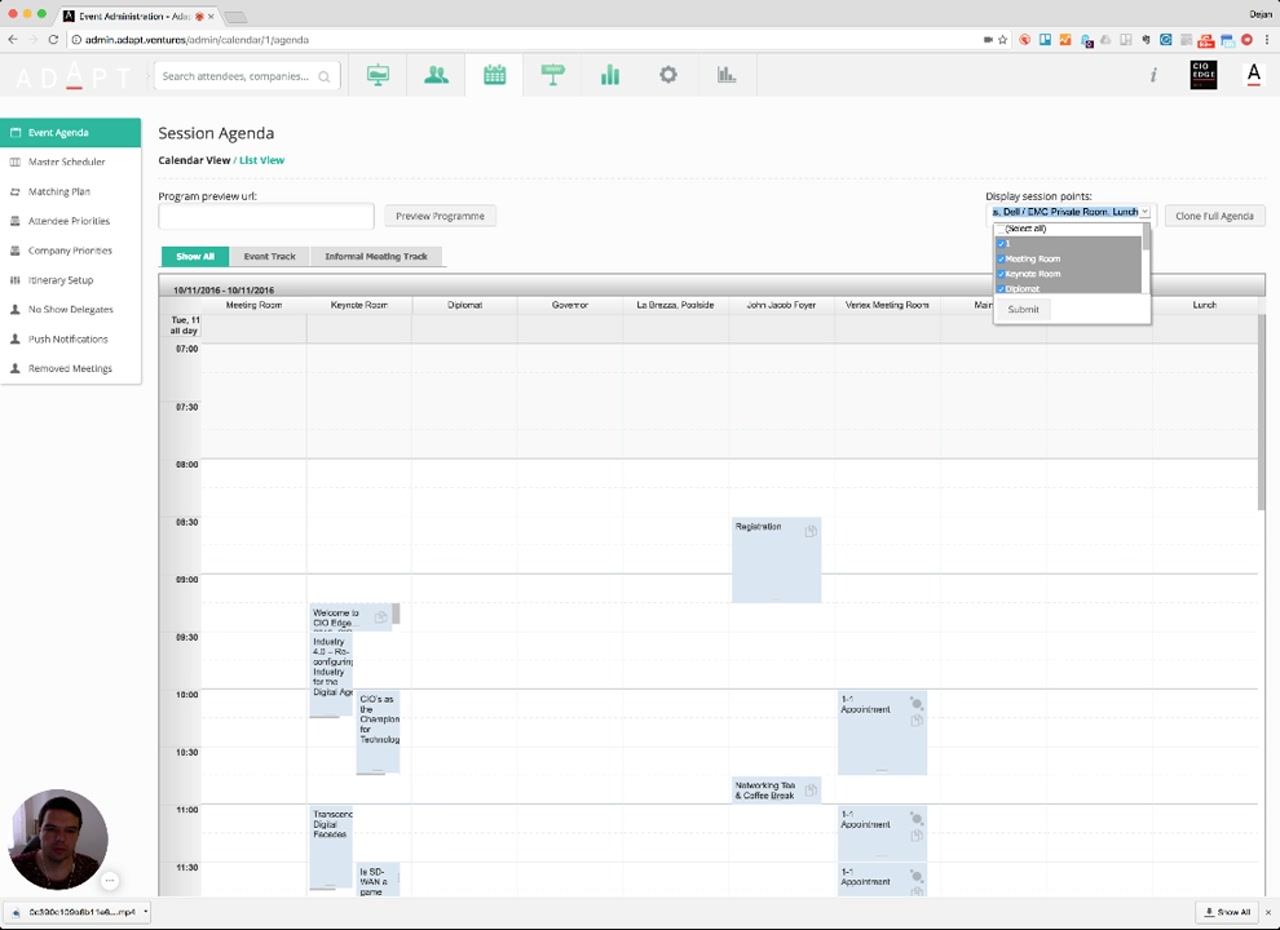
Two key controls at the top of the page:
- Program preview url + Preview Programme — paste a URL here to publish the agenda externally (e.g., a sales-facing website preview). Useful when prospects need to see the programme without an attendee account.
- Display session points dropdown — the room filter shown above.
Interaction: double-clicking a session block on the calendar opens its full editor in a new browser tab — the page covered in §3.
3. Meeting Details — Anatomy of a Session 01:05 – 01:40
Every session has the same structured editor — title, place, time, tracks, type, join behaviour.
Narrator · 01:05 – 01:40 Whether this is the type of the meeting — for example roundtable — and a protocol joint type, which means whether it's manual or auto-join. A manual means your participant needs to select that to join, or auto-join means it will be automatically added to their itineraries. There is an interesting thing called Timeslot Factor — given from 1 to 100, it gives the priority of that meeting slot.
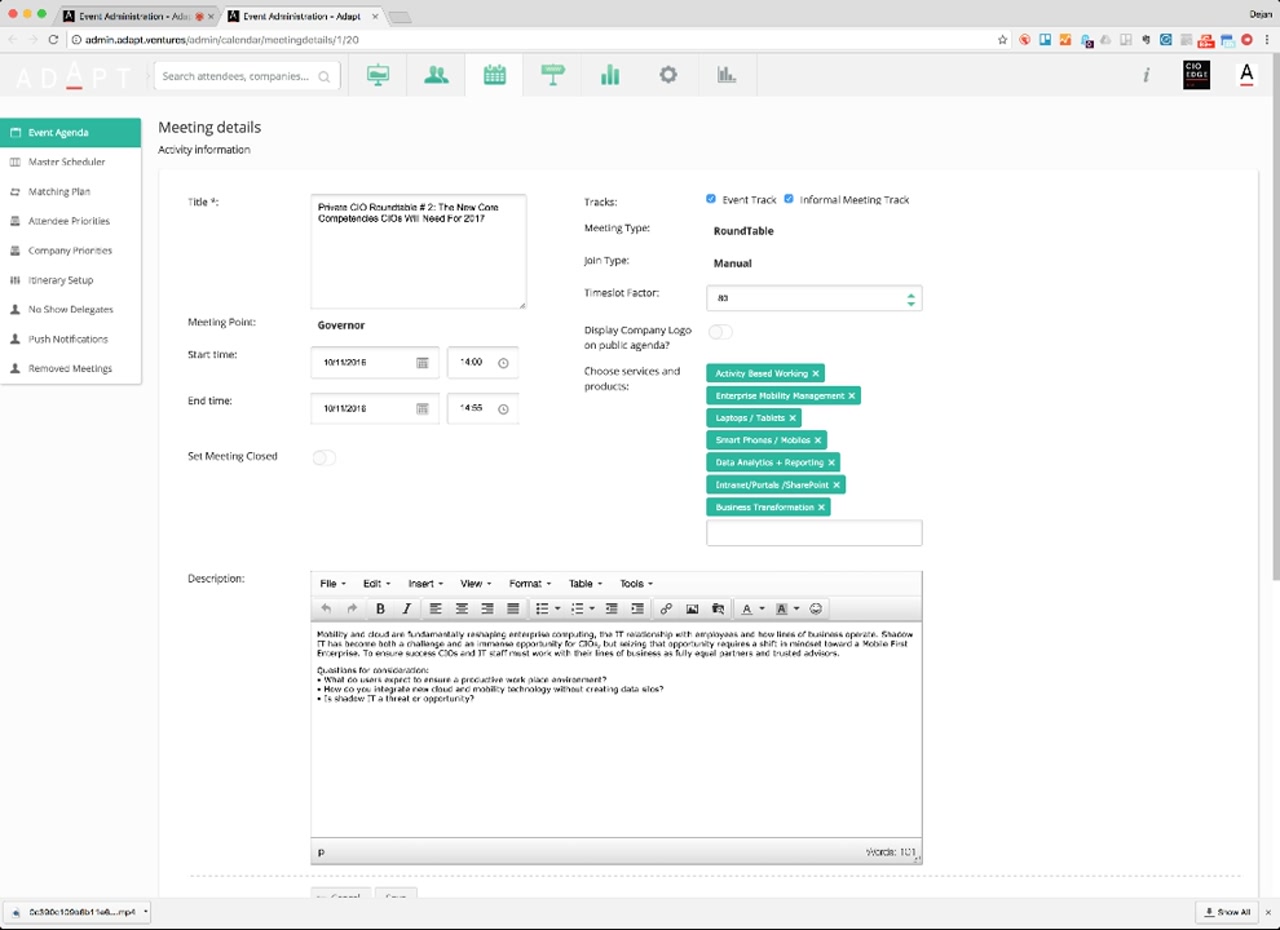
| Field | What it controls |
|---|---|
| Title | The session name shown across the calendar, attendee app and public programme. |
| Meeting Point | The room or location the session takes place in. |
| Start / End time | Date and time window — drives placement on the calendar grid. |
| Set Meeting Closed | Lock the session so no further changes / joins occur. |
| Tracks | Multi-select assignment to one or more tracks (Event Track, Informal Meeting Track, etc.). |
| Meeting Type | The session-type template (RoundTable / Single Meeting / Workshop / Keynote / POD / …) — defined globally in §7. |
| Join Type | Manual = attendee opts in; Auto-join = the session is dropped into their itinerary automatically. |
| Timeslot Factor (1–100) | The priority weight of this slot (covered in §4). |
| Display Company Logo on public agenda? | Show / hide the host company logo on the public programme. |
| Services and products | Tags that drive matching and suggestions (covered in §4). |
4. Timeslot Factor & Service Tags — fuel for the matching engine 01:40 – 02:22
Two fields drive how the matching engine fills 1-to-1 slots automatically.
Narrator · 01:40 – 02:22 If, for example, it's 80, it's close to very important — and that is then used by the matching engine to put the most suitable or more important delegates or sponsors into that given slot based on their preferences. Services and products you can consider as tags — those tags define what type of session it is, and they help the matching and the suggestion engine. Based on the properties given by delegates and sponsors, it can suggest or automatically place them into that given slot.
Timeslot Factor (1 – 100) — a numeric priority weight. Higher = higher priority; the matching engine biases its placements toward higher-priority slots when it has to choose. The narrator's example of 80 reads as "close to very important" — i.e., put your best-matched attendees here first.
Services and products tags — multi-select labels (e.g., Activity Based Working, Enterprise Mobility Management, Laptops/Tablets, Smart Phones/Mobiles, Data Analytics + Reporting, Intranet/Portals/SharePoint, Business Transformation) that classify what the session is about. The matching/suggestion engine cross-references these tags against attendee-declared interests (collected through the forms in Module 2) to decide who belongs in this slot.
5. People, Staff, Documents, Takeaways & Videos 02:22 – 02:46
Each session has a tab strip below the form for everything else attached to it.
Narrator · 02:22 – 02:46 There is a description you can put here for that session, and then you have information like staff members who are speakers, staff management on people who will manage and help this take place. You can place documents — PDFs, presentations and so on. If you have key takeaways to be shown on the website, you can put them here, or if there is a previous recording or video you would like to share with your attendees, you can upload that here.
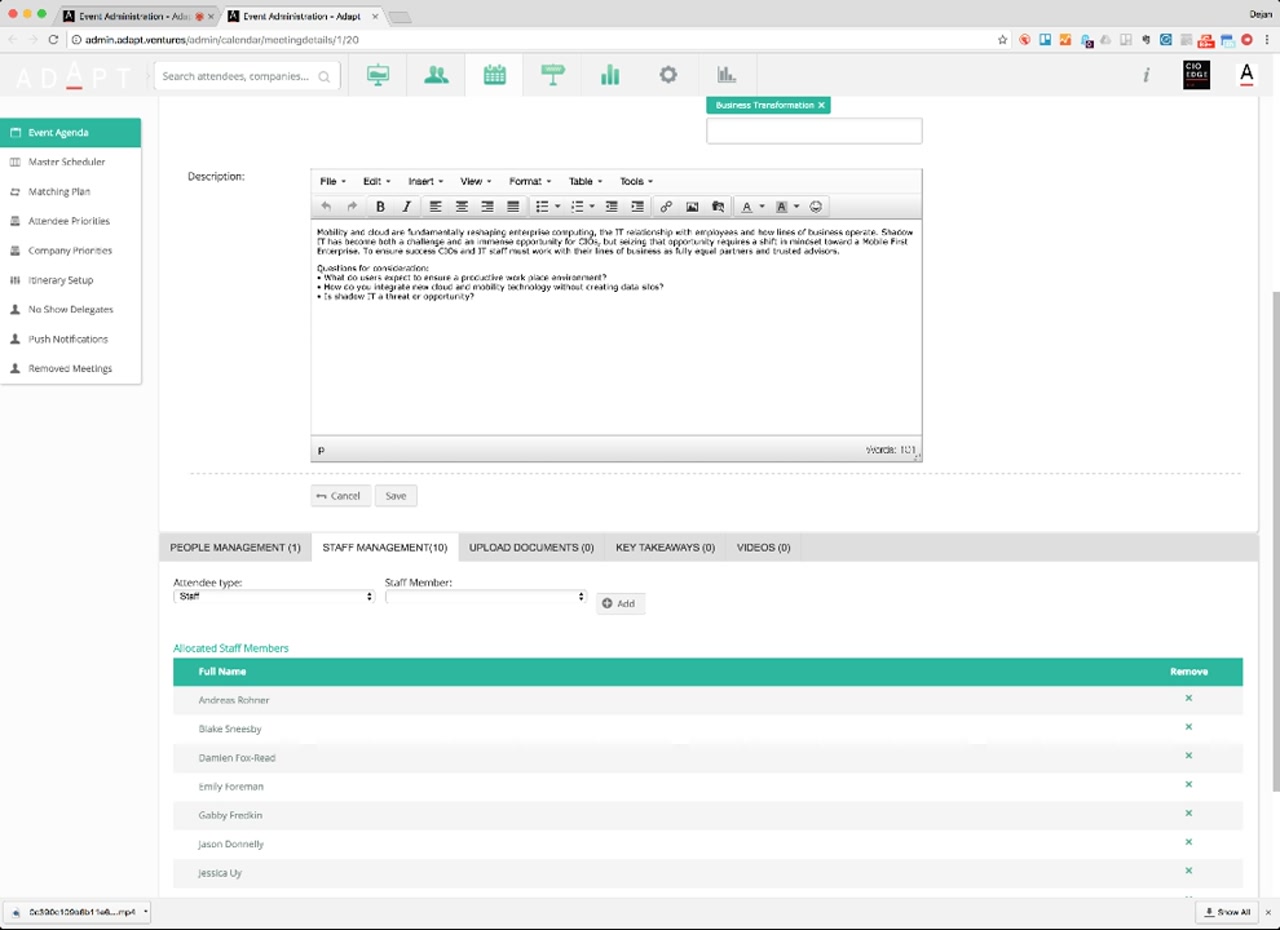
| Tab | What it holds |
|---|---|
| Description | Rich-text body of the session — appears on the public programme and in the attendee app. |
| People Management | Speakers / panelists tied to this session. |
| Staff Management | Internal staff who manage and run this session — selectable by attendee type and individual. |
| Upload Documents | PDFs, presentations and other downloads attached to the session. |
| Key Takeaways | Summary bullets — surfaced on the website / attendee app. |
| Videos | Recordings or pre-shared video. The platform auto-converts to a suitable resolution based on the device being used by the user. |
6. 1-to-1 Slots — The Core Feature 02:46 – 03:22
The agenda isn't only for presentations — it's also where the system places attendee-to-attendee meetings.
Narrator · 02:46 – 03:22 That is one particular session. You can define multiple ones — based on the type of meeting you can do workshops, PODs or whatever you find suitable. And — this is a very core feature of our system — you can define slots for 1-to-1. They are of the type Single Meeting, and then in that given timeslot the system will try to schedule 1-to-1 meetings given the type of what you have defined into the system.
A 1-to-1 slot is just another session on the calendar — but with Meeting Type = Single Meeting. When the matching engine runs, it walks through every Single Meeting slot on the calendar and tries to fill each one with a pair of attendees according to the rules attached to the Single Meeting type (covered in §7).
This is what makes the whole product a hosted buyer system rather than just a programme builder: the calendar becomes the schedule for hundreds of automated, individually matched meetings — not just keynotes and breakouts.
7. Session Types & Attendee-Type Rules 03:22 – 04:32
Settings → Session Types defines what each meeting type means, including who can be in a 1-to-1.
Narrator · 03:22 – 04:00 You can have delegate-to-delegate 1-to-1 or sponsor-to-delegate — the system is completely flexible in defining what type of meetings you'll use. That is defined through the settings here — there are tabs for session types and attendee types. If I go to session types for this presentation, you can see how a Single Meeting / 1-to-1 meeting is defined. Click on attendee types and you can see that the 1-to-1 definition is between sponsors or partners and delegate speakers.
The Session Types page (under Settings → admin/event/{id}/meetingtypes) is the catalogue of every session type the agenda can use.
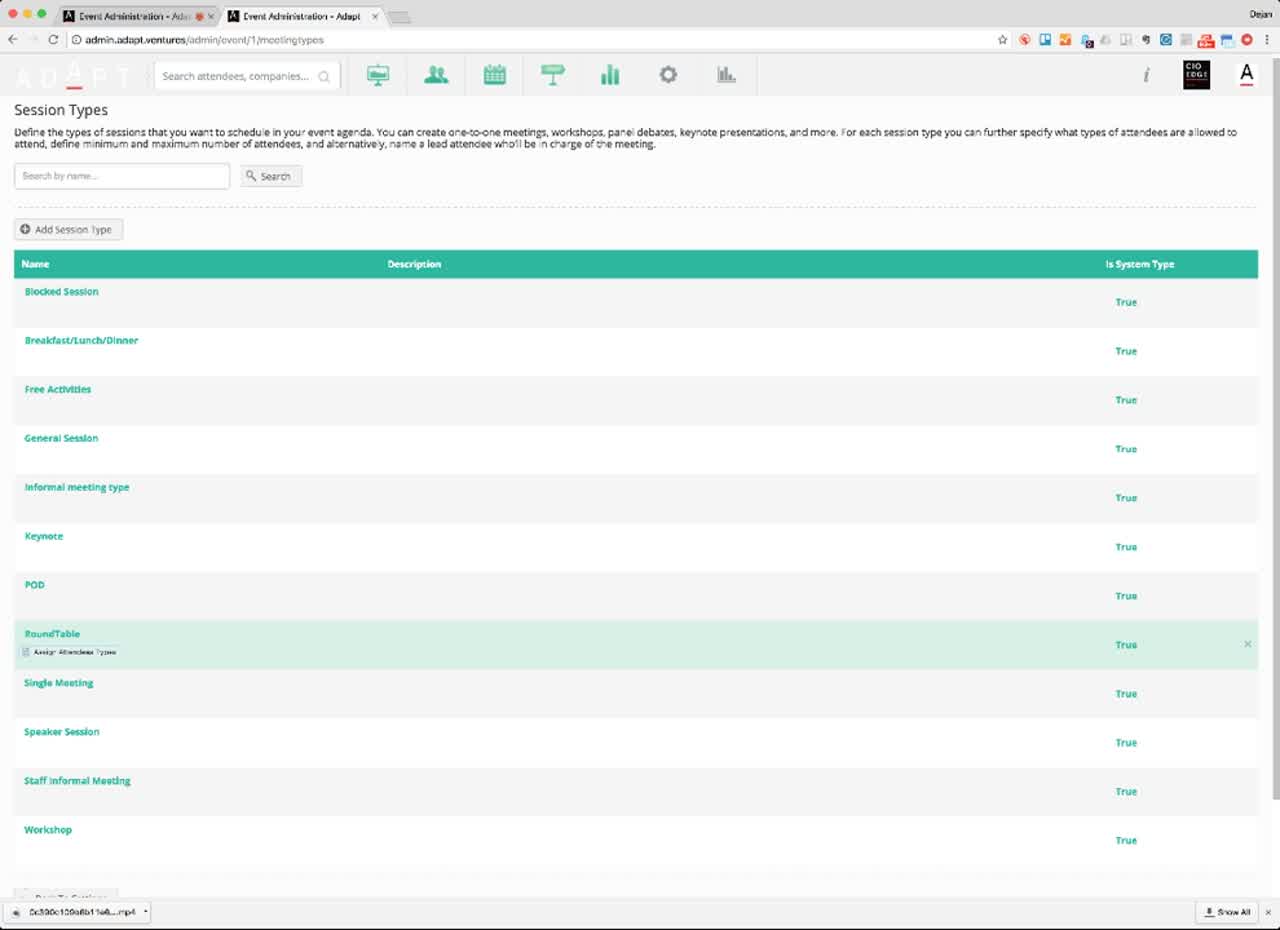
Click any session type (e.g., RoundTable or Single Meeting) to expose its Assign Attendee Types action, which opens a modal that sets the rules for that session type:
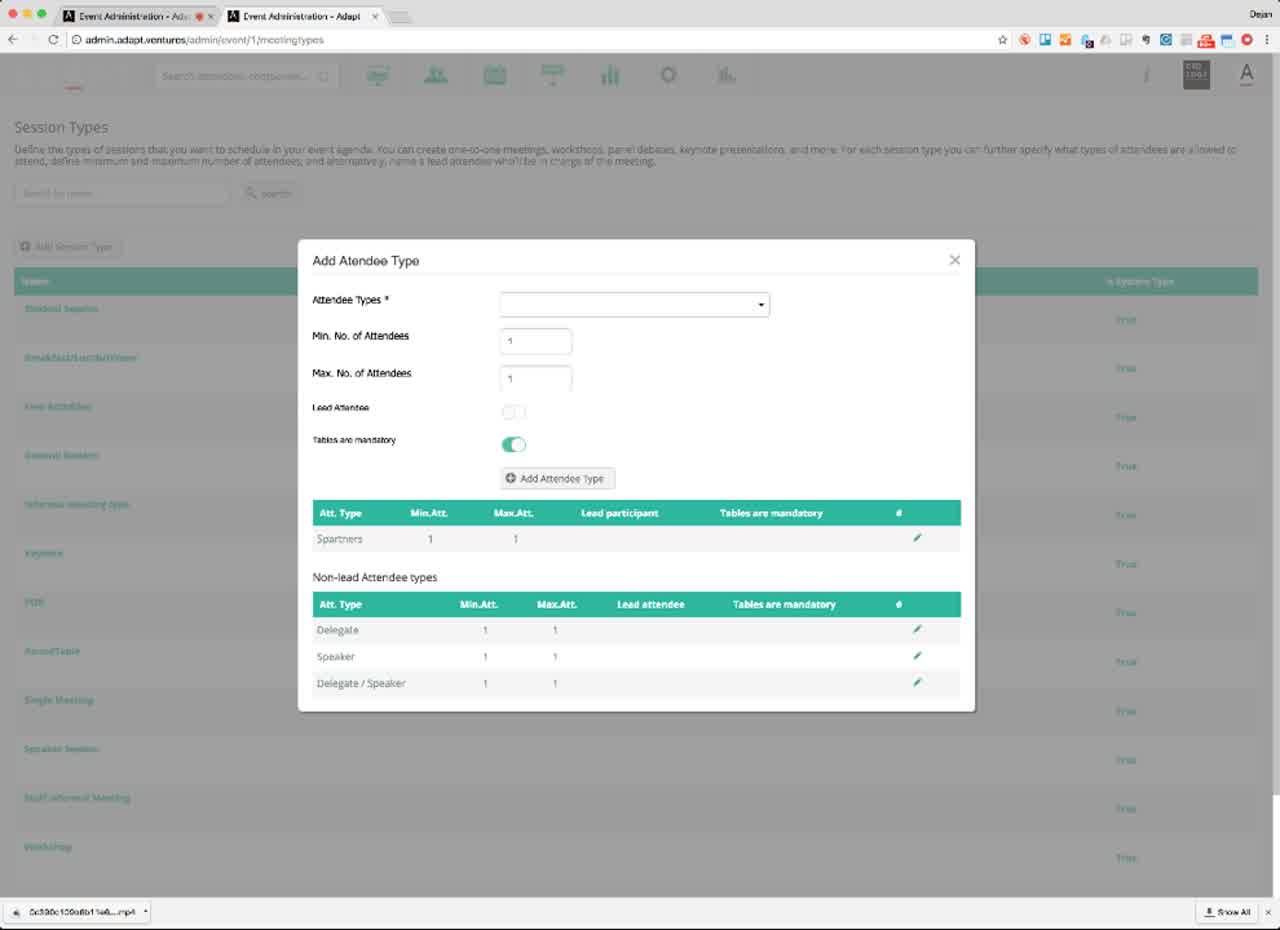
Narrator · 04:00 – 04:32 In this case 1-to-1 says that a minimum of one person can be there, and the lead one taking the meeting is defined by the partner / sponsor, while non-lead attendees are delegate speakers. That is important to be noted, because usually sponsors and partners have fixed table arrangements — like you see, tables are mandatory. So when you assign a sponsor with a given table, the system will automatically shuffle the delegate speakers and put them on their table — instead of, obviously not making sense, sponsors shifting tables to accommodate the delegates.
Lead participant
Non-lead attendees
8. Flexibility — Speed-Dating & Other Patterns 04:32 – 04:47
The same machinery can model very different formats just by changing the rules.
Narrator · 04:32 – 04:47 That is also flexibility within the system — you can define a single meeting for speed-dating, like delegate-to-delegate, where there will be no mandatory tables, or it can be any other type of meeting. A very powerful feature from our system.
By tweaking the same Single Meeting machinery you can model very different formats:
- Sponsor → Delegate hosted-buyer 1-to-1s — sponsors as lead, delegates shuffled in, mandatory tables (the canonical format).
- Delegate → Delegate speed-dating — both sides are delegates, no mandatory tables, the engine simply pairs delegates per slot.
- Any other pattern — different lead/non-lead role combinations, different min/max counts, different table behaviour.
Combined with the matching tags (§4) and the Event Plan deadlines (Module 3), this is what lets one product run very different event formats — all from the same calendar.
9. Essence & Takeaways
The one-paragraph version
The Event Agenda is a wall calendar (rooms across, time down) holding every session in the event. Each session has the same editor: title, room, time, tracks, Meeting Type, Join Type (manual / auto-join), Timeslot Factor (1–100 priority weight), Services and Products tags, description, and tabs for People / Staff / Documents / Key Takeaways / Videos (with auto-resolution conversion). The calendar can be filtered by room and published as a public programme URL. The killer feature is 1-to-1 slots: sessions of Meeting Type = Single Meeting are filled automatically by the matching engine using each attendee's tagged interests and the slot's Timeslot Factor. The per-session-type rules (Settings → Session Types → Attendee Types) define the role asymmetry — for hosted-buyer 1-to-1s, sponsors / partners are the lead with mandatory tables, and delegate / speaker non-leads are shuffled onto those tables. Change the rules and you get speed-dating delegate-to-delegate, or any other pattern — same machinery, different settings.
- An operations runbook for building an event agenda from scratch (calendar → sessions → 1-to-1 slots → matching).
- A reference doc for the matching team explaining how Timeslot Factor and Services / Products tags drive auto-placement.
- Sales material describing how the same product handles classic hosted-buyer events and delegate-only speed-dating.
- A QA checklist when cloning an agenda — every session's Meeting Type, Join Type, Timeslot Factor and tag set must be revalidated for the new dates.
10. Full Transcript
Verbatim narration provided alongside the video, segmented by timestamp.