Event Scheduling Automation
The matching engine — what runs once delegate priorities (Module 5), sponsor priorities (Module 6) and admin overrides (Module 8) are all in. This module covers the Setup Matching Plan UI (drag-and-drop ordering of session types, per-type settings, attendee-type weighting), running and re-running the plan, the statistics the run produces, the run history with rollback, and the per-attendee Matching Review where administrators can delete or manually add individual meetings.
1. From Selections to Schedule 00:00 – 00:54
Every selection in the system feeds the matching engine. The engine produces a meeting calendar.
Narrator · 00:00 – 00:26 In this portion we review the automated matching and scheduling engine and how it looks from an administrator point of view. As soon as everyone has provided their preferences — delegates and sponsors — you have a full overview of what the priorities are. For example, you can choose a sponsor or partner and then you see their selections.
Narrator · 00:26 – 00:54 For each, you see their priority — they have assigned priority 1, priority 2, or priority 3. Once you have all this gathered, you move to the matching plan. The matching plan is where you actually define the logic of how the system is about to schedule these meetings. You define what sections or meeting types you want to have scheduled.
2. Setup Matching Plan — Drag & Drop Order 00:54 – 01:11
A numbered list of session types — the order is the order the engine fills them in.
Narrator · 00:54 – 01:11 You can use — as you have probably noted — drag and drop to define the priorities. That means the system will first try to schedule the workshops; after they're finished it will move to roundtables; after that is finished it will move to 1-to-1.
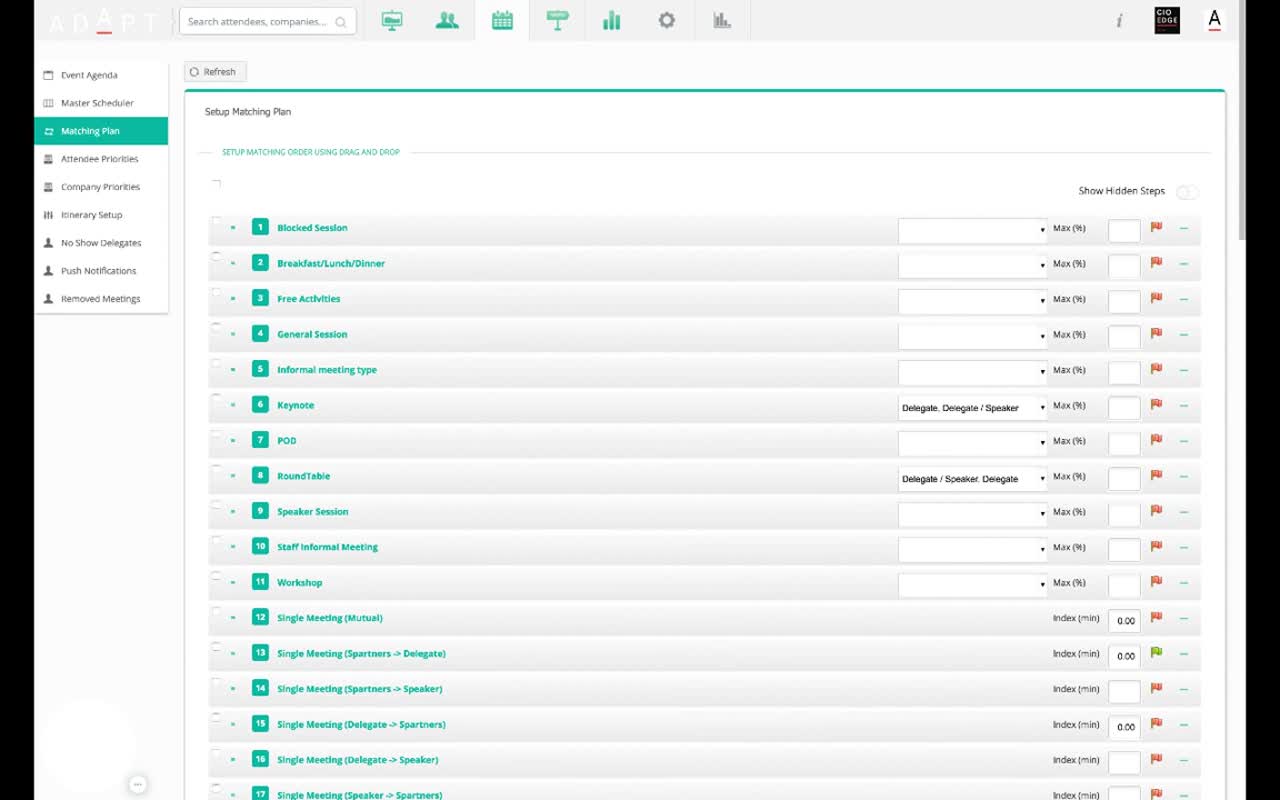
Each row carries:
- Drag handle on the left to reorder.
- Sequence number (1, 2, 3…) — the order the engine will try to schedule this type.
- Attendee-types dropdown for pre-scheduled types (e.g., Keynote attended by Delegate, Delegate / Speaker).
- Max (%) for pre-scheduled types — caps the slot.
- Index (min) for Single Meeting variants — the per-meeting weight (covered in §3).
- Red / green flag indicators for active / inactive rules.
3. Per-Session-Type Settings 01:11 – 01:54
For roundtables: min/max attendees and who can attend. For 1-to-1s: how heavily it weights the schedule.
Narrator · 01:11 – 01:54 It is important to know that for each of these, there are settings. For roundtables you say what is the minimum and maximum amount of participants, and you can select the attendee types taking part in the roundtable. For 1-to-1s, you can define how much that meeting is weighting into the whole session.
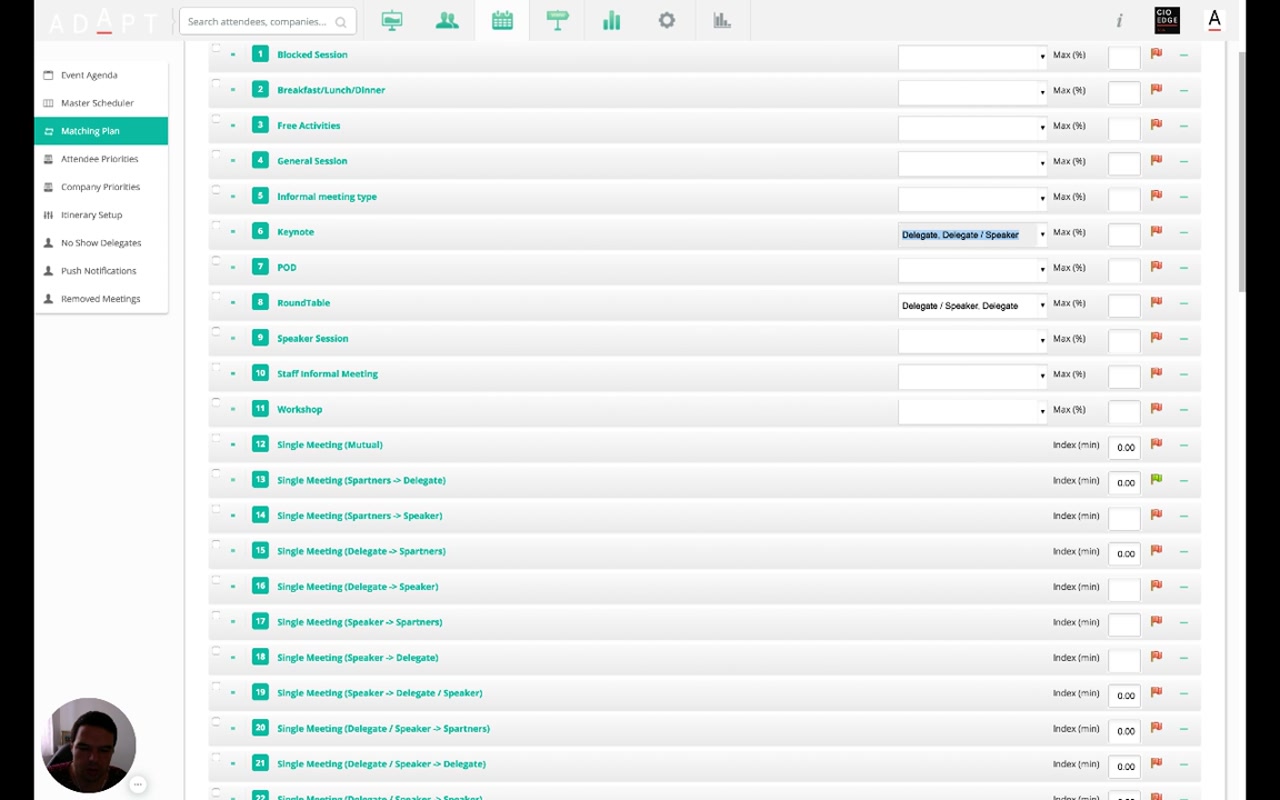
| Per-row setting | What it does |
|---|---|
| Attendee types (Keynote, RoundTable, etc.) | Which attendee types can attend this session-type slot. Driven by the rules defined in Module 4 §7. |
| Max (%) | Upper cap on how full each slot of this type can get (a percentage of capacity). |
| Index (min) for Single Meetings | Minimum match-score threshold. A 1-to-1 pairing below this index is excluded from auto-placement. |
| Show Hidden Steps toggle | Reveal entries you've previously hidden so you can re-include them. |
4. Running the Plan 01:54 – 02:22
Give it a name; click Run; come back in a few minutes for the result.
Narrator · 01:54 – 02:22 As soon as you define all of these, you can proceed to running the matching plan. When you run the matching plan, you just give it a name and then you click Run. After several minutes, the system gives you a full overview of what has been scheduled.
The Run dialog has three controls:
- Save — keep the plan configuration without running it.
- Run — execute the matching engine against the saved plan and persist the resulting schedule as a new run.
- Simulate — run the engine in dry-run mode to preview what it would schedule, without persisting.
5. Run Output — Statistics & Coverage 02:22 – 02:54
Once the run finishes, three views show what got scheduled and how well it covers your attendees.
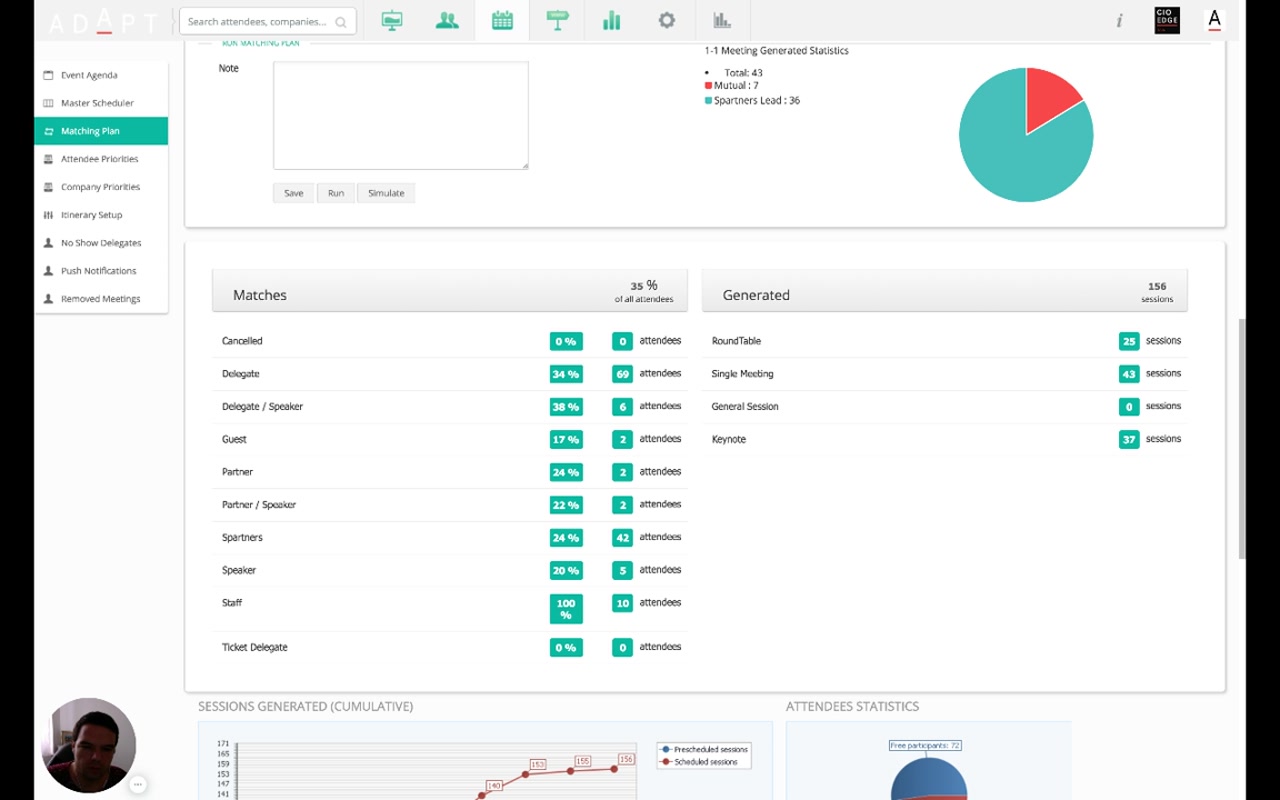
Narrator · 02:22 – 02:54 Most delegates have between 8 and 10 sessions in the event. It's the same for partners — 24 partners have more than 10 sessions scheduled. So that's very important to see — that everyone is busy and everyone has a good amount of meetings.
6. Run History & Apply 02:54 – 03:19
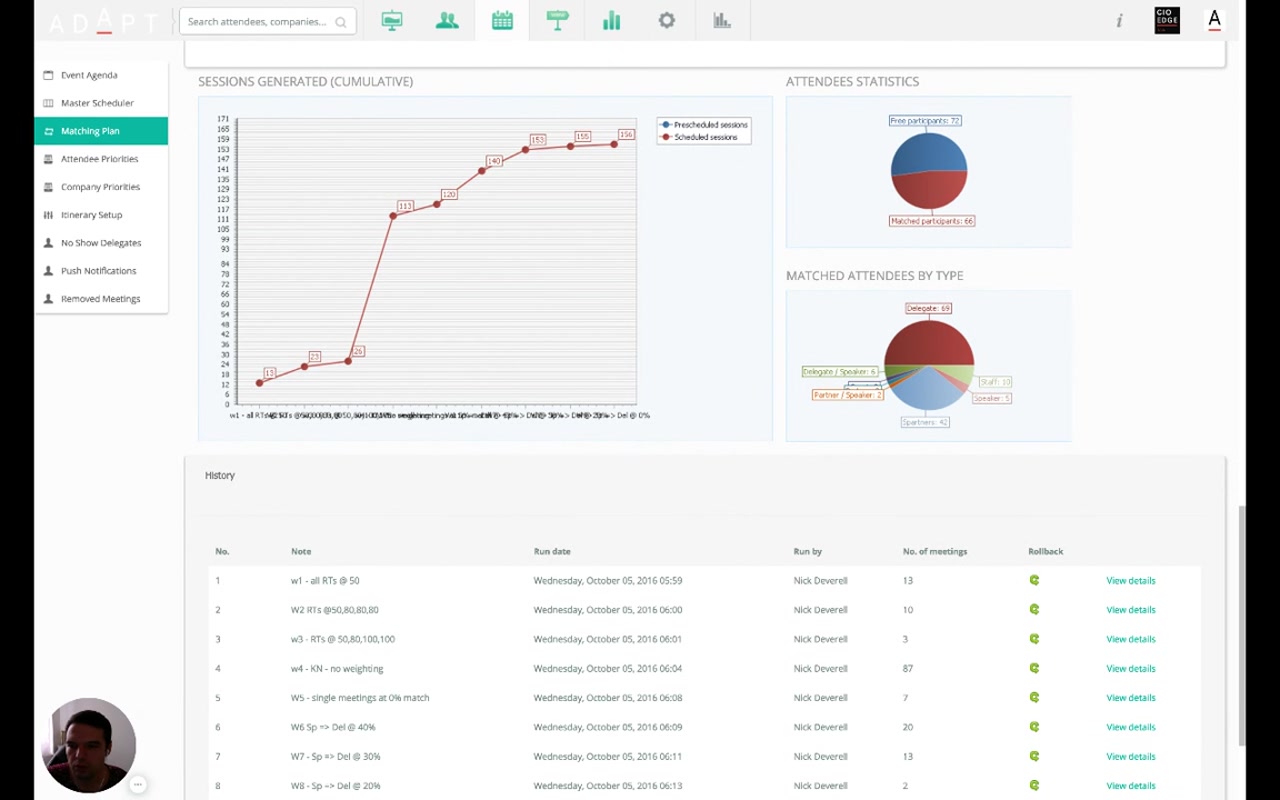
Every previous run is kept. Compare them, then apply the one you like.
Narrator · 02:54 – 03:19 As soon as this is done, you can also have a look at the history of what has been run. From here you can see all previous matching runs, and for each you can see the results. If you find a suitable matching run, you can just click Apply and that will be assigned to the attendees — they will be able to see it in their client panel or on the mobile app.
| History column | What it shows |
|---|---|
| No. | Sequence number of the run. |
| Note | The label the administrator gave the run when starting it (e.g., "w1 - all RTs @ 50", "W6 Sp => Del @ 40%") — useful for parameter sweeps. |
| Run date | Timestamp. |
| Run by | Which administrator triggered it. |
| No. of meetings | How many meetings the run produced. |
| Rollback | Revert to a previous state. |
| View details | Open the full run output for inspection or to Apply. |
7. Matching Review — Per-Attendee Schedule 03:19 – 03:52
Inspect what the engine scheduled for each attendee, one at a time.
Narrator · 03:19 – 03:52 What you can do from here as an administrator is review the meetings. If I click on Matching Review, the system gives me a full overview of what has been scheduled. For each delegate or each sponsor, I can see what is being scheduled into their itinerary — for example, for this person on Monday they have roundtable sessions, single meetings, and I can see with whom they are meeting.
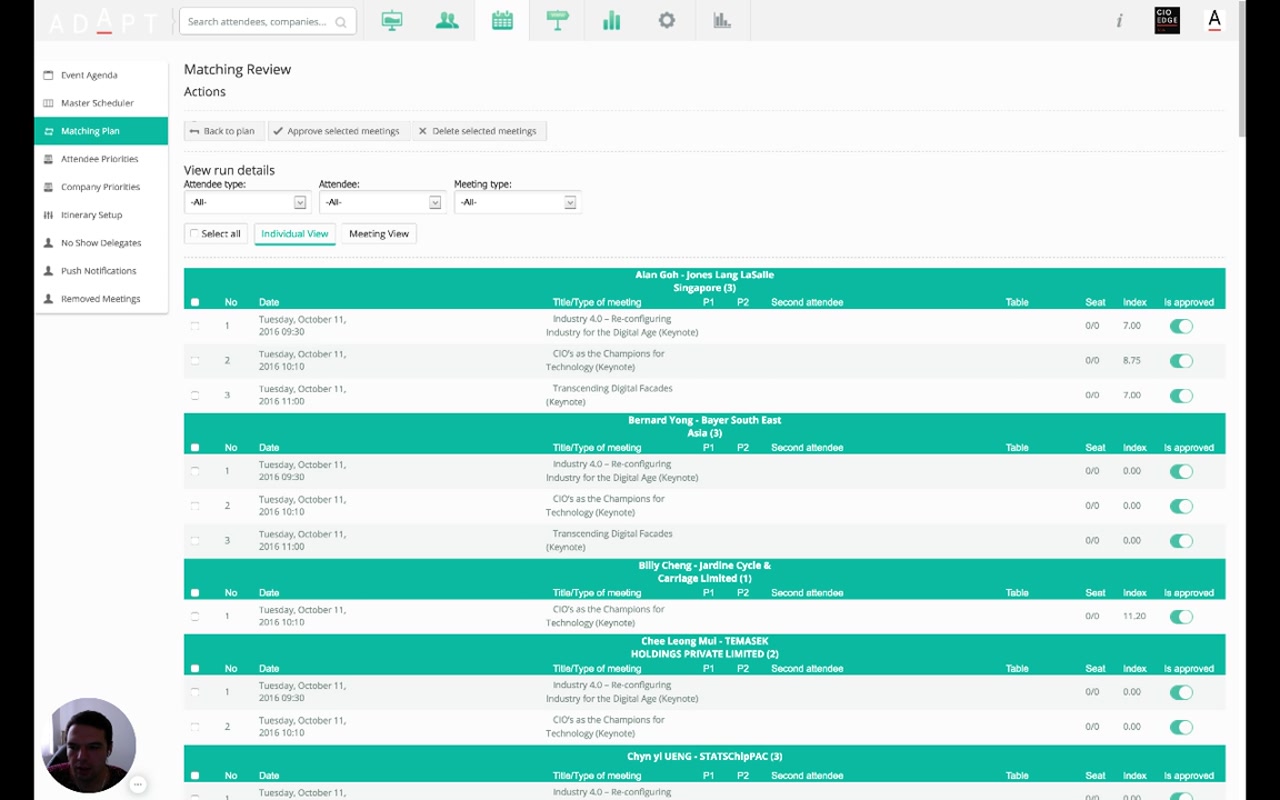
Two views on the same data: Individual View groups by attendee (one card per person showing their full day), Meeting View groups by meeting (showing all attendees in each session). Use whichever fits the question you're answering.
8. Manual Edits — Delete or Add a Meeting 03:52 – 04:22
The engine does the heavy lifting; the admin retains the final say.
Narrator · 03:52 – 04:16 As an administrator, you have full flexibility — you can delete a meeting if you think it's not suitable, or you can add a meeting manually if you find that there is a need for that. You just click Add Meeting, select the person, and the system will give you the available slots where this person is free.
Two override paths from the Matching Review:
- Delete a meeting — tick the meeting and click Delete selected meetings. Useful for removing a poor pairing or freeing the slot for a manual one.
- Add a meeting — click Add Meeting, pick the attendee, and the platform shows you the slots where that attendee is free. Pick a slot and a counterpart; the meeting goes into the schedule alongside the engine's output.
Narrator · 04:16 – 04:22 So that's how you manage and run the automated scheduling on the platform.
9. Essence & Takeaways
The one-paragraph version
Setup Matching Plan is a numbered drag-and-drop list of session types — pre-scheduled types (Workshop, Keynote, RoundTable, etc.) with Max % caps and attendee-type rules; then directed Single Meeting variants (Spartners→Delegate, Delegate→Spartners, Speaker→Delegate / Speaker, etc.) with Index (min) match-score thresholds. The order in the list is the order the engine fills slots. Click Run with a label and the engine produces a run; come back to a stats screen with a 1-to-1 pie (Total / Mutual / Spartners-Lead), a Matches panel showing match-coverage % per attendee type, a Generated panel of session counts by type, and a cumulative-sessions chart. Every run is kept in a history table with note, date, owner, meeting count, rollback and View details — Apply the run you like and attendees see it in their client panel and mobile app. Matching Review exposes the per-attendee schedule with filters by attendee type / attendee / meeting type, and an Individual View / Meeting View toggle. From there, administrators can delete any auto-scheduled meeting or manually add one (the platform shows free slots), giving them final say over the engine's output.
- An ops runbook for "how do we run scheduling for event X" — including the parameter-sweep workflow.
- A reference for whoever tunes match thresholds (Index min, Max %) for a new event format.
- A QA list before applying a run — coverage by attendee type, meeting count per attendee, mutual-vs-lead 1-to-1 ratio.
- A naming convention for run notes ("W6 Sp → Del @ 40%") so the history table stays readable across many sweeps.
10. Full Transcript
Verbatim narration provided alongside the video.