Mobile Interface (Delegate & Sponsor)
The companion mobile app that delegates and sponsors use on the ground. It mirrors the client panel (Modules 5–6) but in a phone-friendly layout: a button menu home, the personal itinerary, session detail with takeaways and chat, 1-to-1 notes, the attendee directory, the full programme and speakers, and downloadable research papers.
1. Logging In on Mobile 00:00 – 00:20
Same credentials as the web client panel — the app pulls in the attendee's own data on login.
Narrator · 00:00 – 00:20 In this final portion, we are about to see how the mobile interface looks like for both sponsors and delegates. So, logging in as an attendee into the system gives you a set of icons on the top where you can see your meetings — the amount of meetings scheduled and also the business cards exchanged during the event.
The mobile app is the same product surface as the client panel covered in Modules 5 and 6 — the same login, the same data — but with a layout designed for in-the-pocket use during the event itself. Once logged in the attendee lands on the main menu (§2).
2. Main Menu & Top Counters 00:00 – 00:20
Three live counters at the top, eight buttons underneath — every key surface is one tap away.
![Mobile main menu with a 'Please refer to Program for the next session' notification at the top, three icon counters (1-1 meetings 0, Informal meetings 0, Business Cards 0), and eight large red buttons: My Itinerary, Program, Attendees, Informal Meetings, Research & Papers, Map, [Vendor] Information, Staff Section](assets/11/01_mobile_main_menu.jpg)
| Top counter | What it counts |
|---|---|
| 1-1 meetings | The number of 1-to-1 meetings scheduled into the attendee's itinerary by the matching engine. |
| Informal meetings | Meetings created in the informal-meeting flow on top of the scheduled itinerary. |
| Business Cards | Cards the attendee has exchanged with other attendees through the app — a running tally of networking activity. |
3. My Itinerary 00:20 – 00:46
A chronological list of every meeting and session scheduled for this attendee.
Narrator · 00:20 – 00:46 If you click on My Itinerary, the system provides you with a list of all your scheduled meetings — from when you started with the registration to the keynote sessions, and to your 1-to-1 meetings. On each of these 1-to-1 meetings, you can see with whom you are meeting and also what is the location of your meeting. In this case, it's Table 1.
What's listed: everything in the attendee's day, in chronological order — registration check-in, keynote sessions, panels, networking breaks, and the 1-to-1 meetings the matching engine produced (Module 9). For the 1-to-1s, each row carries the counterpart's name and the table location so the attendee knows exactly where to walk.
4. Session Detail — Takeaways, Chat, Rating 00:46 – 01:10
Tap any session to read the brief, join the in-session chat, or leave a star rating and comment.
Narrator · 00:46 – 01:10 If you click on a particular session, you can see information about that session — what are the key takeaways — and you also have a possibility to participate in a chat, like we said, and rate the session with stars or leave a comment which is then available to the organizer.
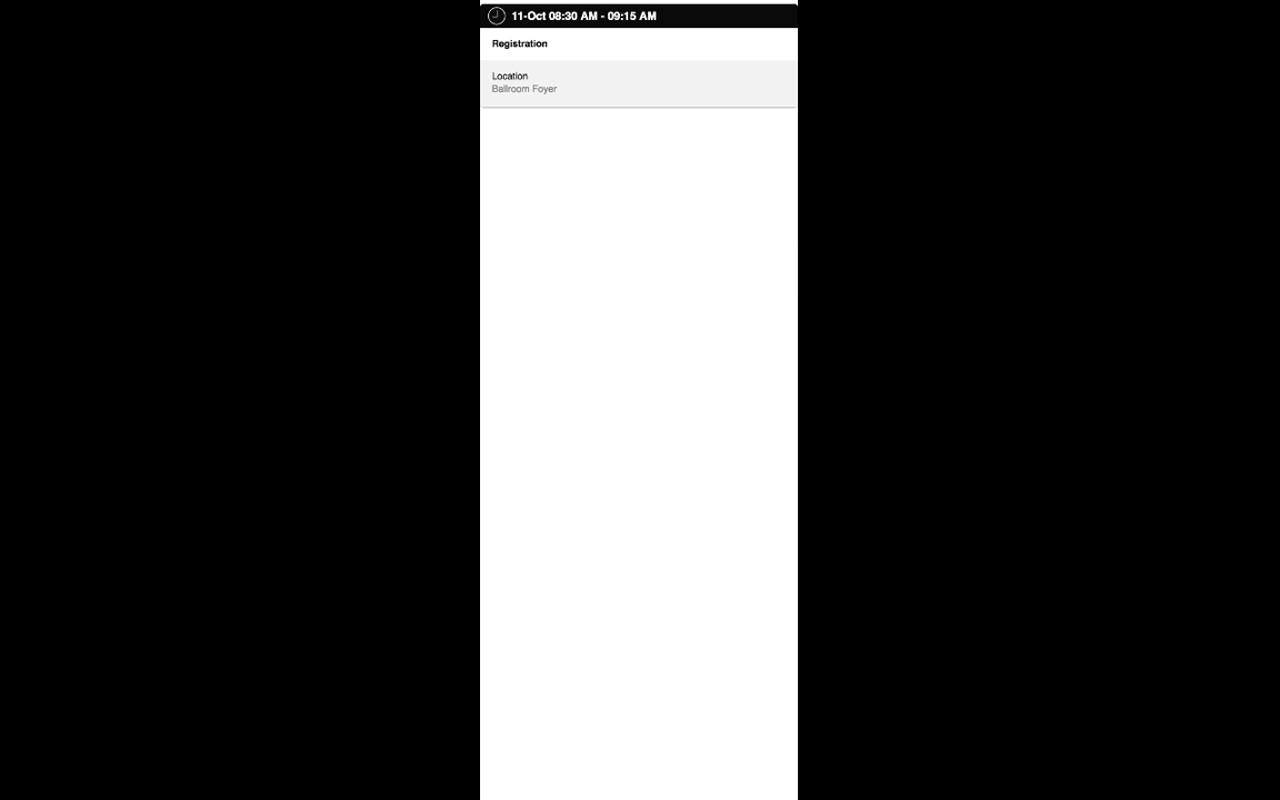
| Element | What it provides |
|---|---|
| Time bar | Date and start–end time at the top of the session detail. |
| Title & description | Session name and the rich-text description from the agenda editor (Module 4 §3). |
| Location | Room or table where the session takes place. |
| Key Takeaways | Bullet summary uploaded by the organizer in Module 4 §5. |
| Chat | Optional per-session group discussion. Enabled by the organizer. |
| Star rating + comment | Attendee feedback that flows back to the administrator after the session. |
5. 1-to-1 Meetings — Notes & Downloads 01:10 – 01:30
After each 1-to-1, jot a couple of notes; download the whole notebook from the portal at the end of the event.
Narrator · 01:10 – 01:30 The same goes for the 1-to-1 meetings. For 1-to-1 meetings, you have a possibility to take some notes about that particular attendee. So, when the meeting is over, you can just leave a couple of notes which then you can download at the end of the event through the portal.
Each 1-to-1 meeting in the itinerary opens to a screen that mirrors the session detail (counterpart, time, location) but adds a Notes field. Attendees use it to capture follow-ups in the moment. After the event, the notes for every 1-to-1 are aggregated into the attendee's portal account so they can be downloaded as a single notebook for follow-up.
6. Attendees Directory 01:30 – 01:54
Browse who else is at the event; chat or visit their company website.
Narrator · 01:30 – 01:54 From here, as well, you can see who are the attendees into the system. You can see their photos, you can see their details, you can even chat with them or visit their company profile and company website through the app. From here, you have an ability as well to see the program of the event.
The Attendees button opens a directory of every attendee who has consented to being listed. Each card carries:
- Profile photo and name.
- Job title and company.
- Tap-through to a richer profile (biography, full company info).
- A chat button to message the attendee in-app.
- A company website link that opens externally.
7. Program & Speakers 01:54 – 02:18
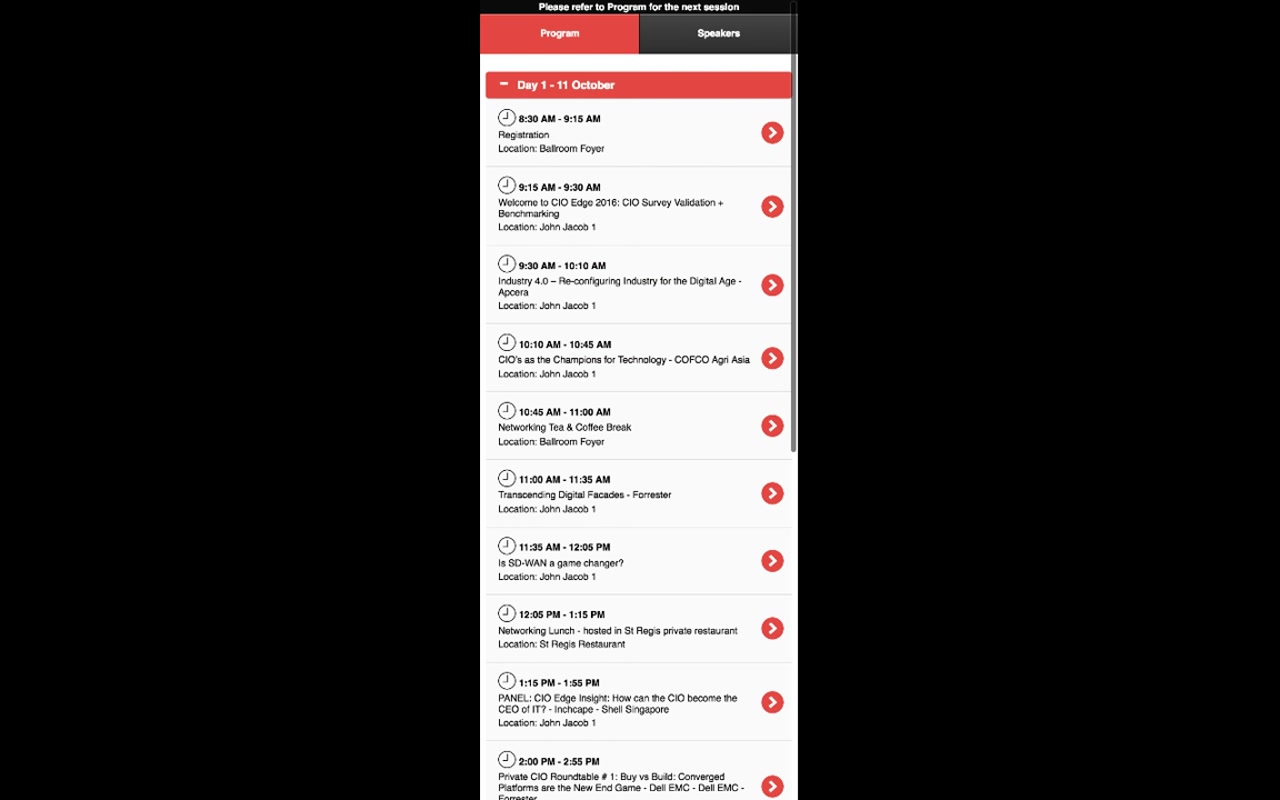
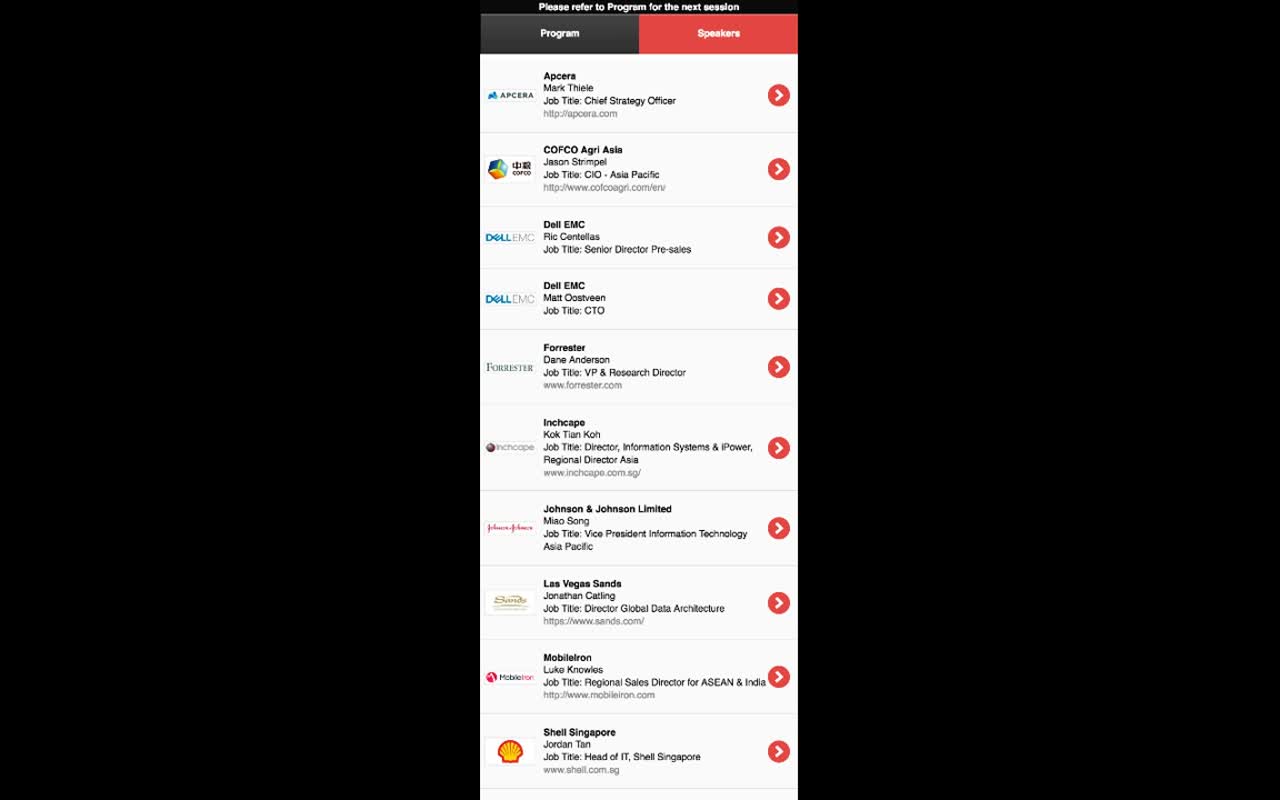
The full event programme — every session, every day — and a list of all speakers with their bios.
Narrator · 01:54 – 02:18 You can see all the speakers, and for each of the speakers, if you click on them, you can see the personal biography and also in which sessions that speaker is participating. You can also see the research and papers provided for that given event.
8. Research & Papers 02:18 – 02:42
PDFs uploaded for the event — readable directly on the phone.
Narrator · 02:18 – 02:42 For each of these sessions, you can have the presentation PDF being uploaded — you can click on that and read that directly on your mobile device.
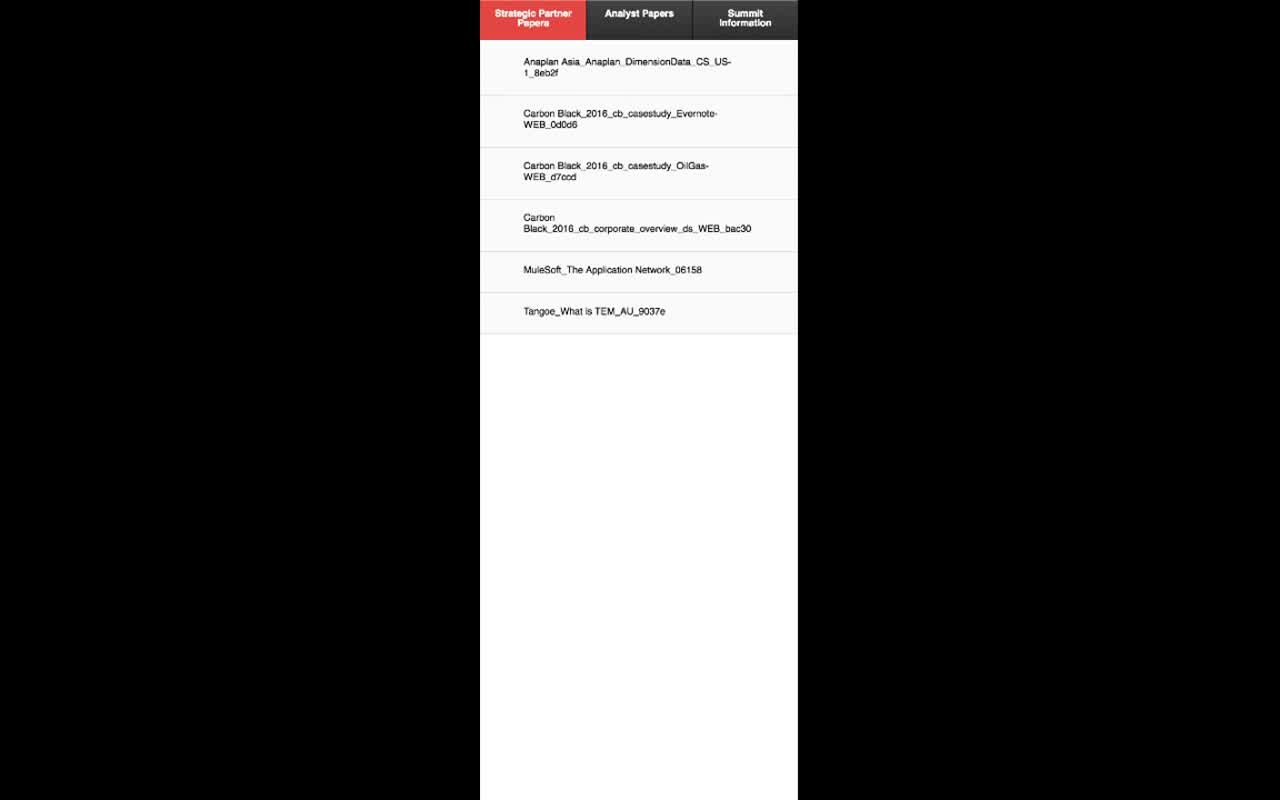
Combined with the per-session PDFs uploaded in Module 4 §5, the mobile app gives every attendee a complete library of the event's reading material — case studies, analyst reports, presentation decks — all without needing to find a laptop.
9. Essence & Takeaways
The one-paragraph version
The mobile app is the on-the-ground companion to the web client panel. It opens on a button-menu home with three live counters at the top (1-1 meetings, Informal meetings, Business Cards) and eight tap targets: My Itinerary (every session and 1-to-1, in order, with counterpart and table location), Program (the full event timeline) and Speakers (one tab over, with bios and the sessions each speaker is in), Attendees (a searchable directory with chat and website links), Informal Meetings, Research & Papers (PDFs split into Strategic Partner Papers / Analyst Papers / Summit Information, openable in the device's reader), Map, an Information screen, and a Staff Section. Tapping a session drills into a detail page with key takeaways, chat (if enabled), star rating, and comments back to the organizer. Tapping a 1-to-1 adds a Notes field — captured per counterpart and downloadable as a single notebook from the portal after the event.
- The pre-event email teaching attendees how to use the app on day one.
- A QA checklist for "every screen of the mobile app must work for both delegate and sponsor accounts".
- Sales material describing the "in-the-pocket" companion for hosted-buyer events.
10. Full Transcript
Verbatim narration provided alongside the video.