Mobile Interface (Staff)
The same companion app from Module 11, but logged in as a staff member. Adds a Staff Section that gives onsite operators what they need to run the day: live check-in / check-out of delegates, attendance tracking for roundtables and workshops, and a real-time view of every sponsor's 1-to-1 itinerary so they can help attendees navigate to the right table at the right time.
1. Same App, Staff Section Added 00:00 – 00:22
Staff log into the same mobile app delegates and sponsors use — but the menu surfaces extra tools.
Narrator · 00:00 – 00:22 Now we are logged in as a staff member and you can see that the icons on the top are slightly different. Beside the itinerary and program and attendees, you have also a section called "Staff Section."
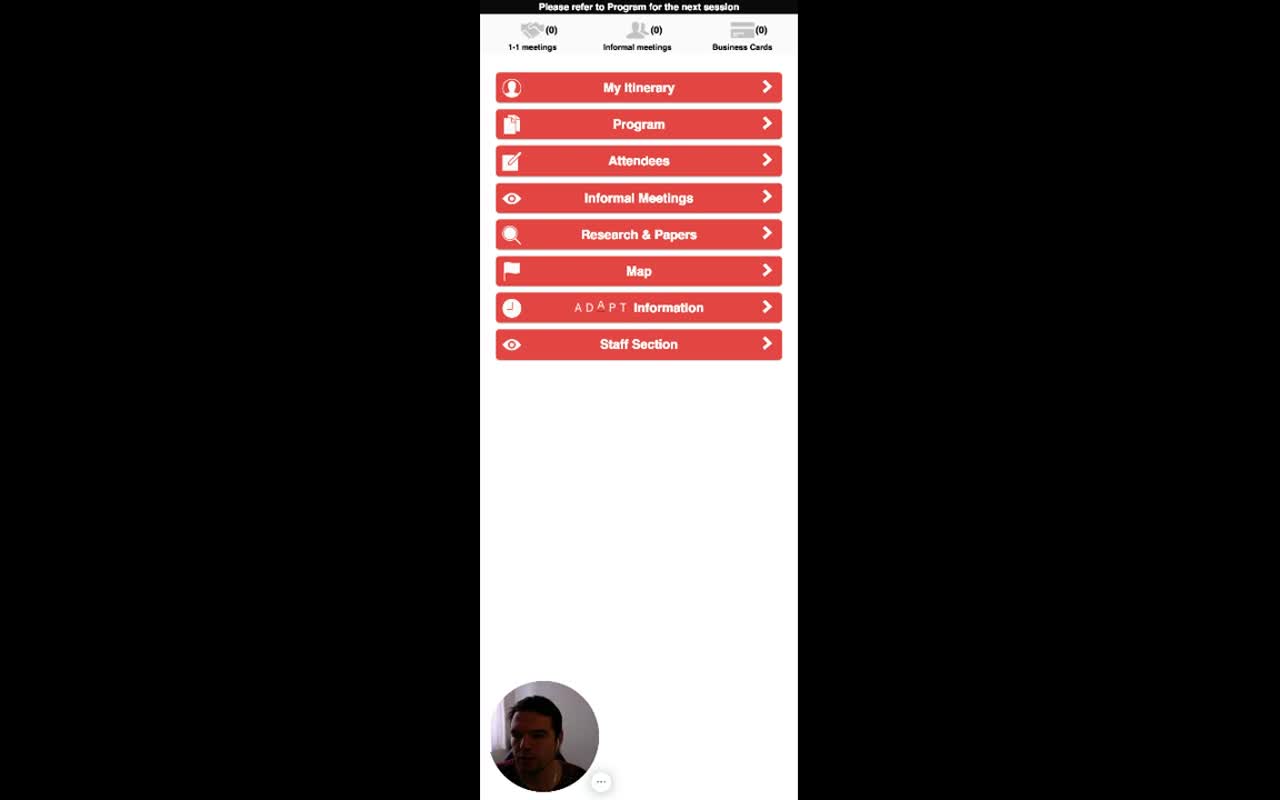
The staff app is one role variant of the same app, not a separate product. That keeps onsite staff working in a UI they already know — the only difference is the additional menu entry.
2. Check In / Out Delegates 00:22 – 01:05
A live list of every delegate, swipe-style check-in / check-out, with status filters.
Narrator · 00:22 – 00:48 The staff section gives you — as an organizer — additional possibilities to manage the event onsite. For example, if you click on Check In/Out Delegates, this is where you can see all of your delegates being registered for the event.
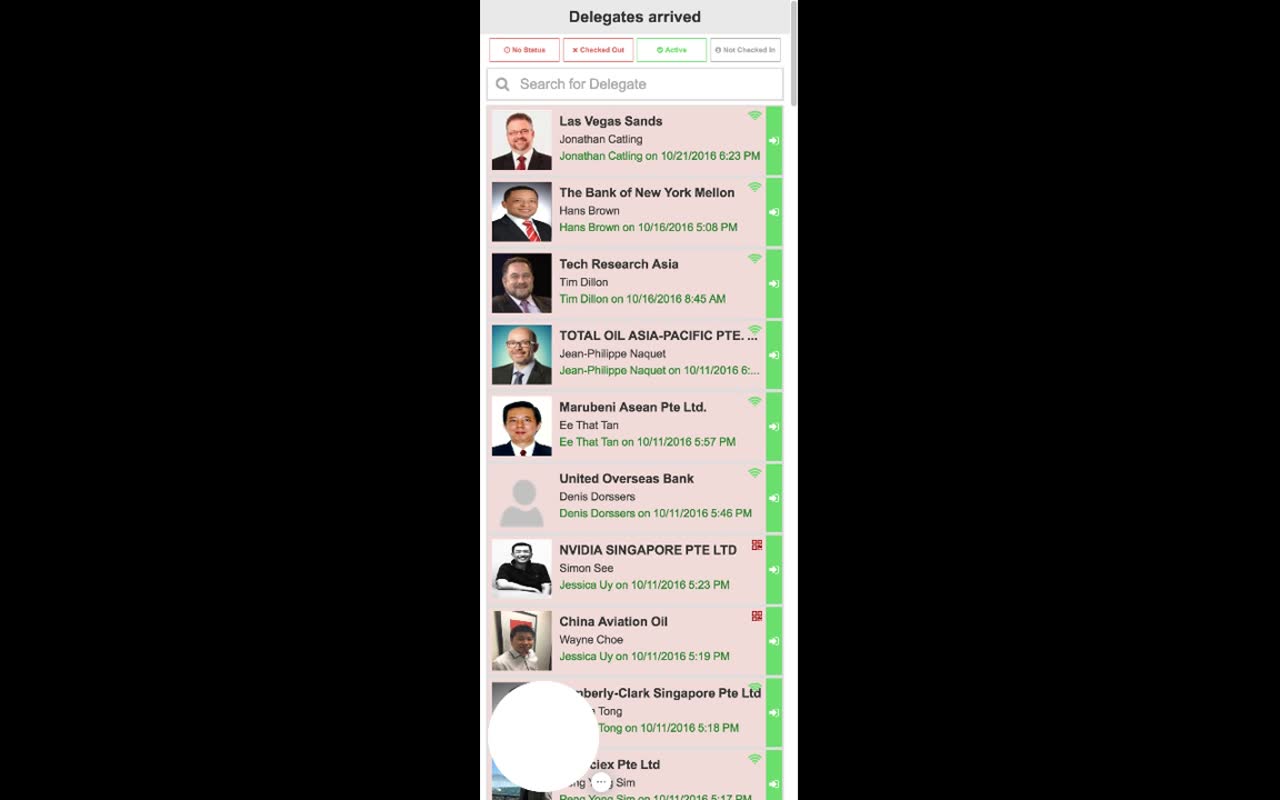
Narrator · 00:48 – 01:05 For each of them, you have a possibility to actually do the check-in or check-out, so you have a full overview of who is currently onsite and who is not.
| Filter pill | What it shows |
|---|---|
| No Status | Delegates with no check-in event yet — useful early in the day. |
| Checked Out | Delegates who have left the venue. |
| Active | Delegates currently onsite — the default working view during the event. |
| Not Checked In | Delegates expected but not yet on the floor — a chase-list for staff. |
3. Per-Delegate Check-In History 00:48 – 01:05
Tap a delegate row to see their full attendance log.
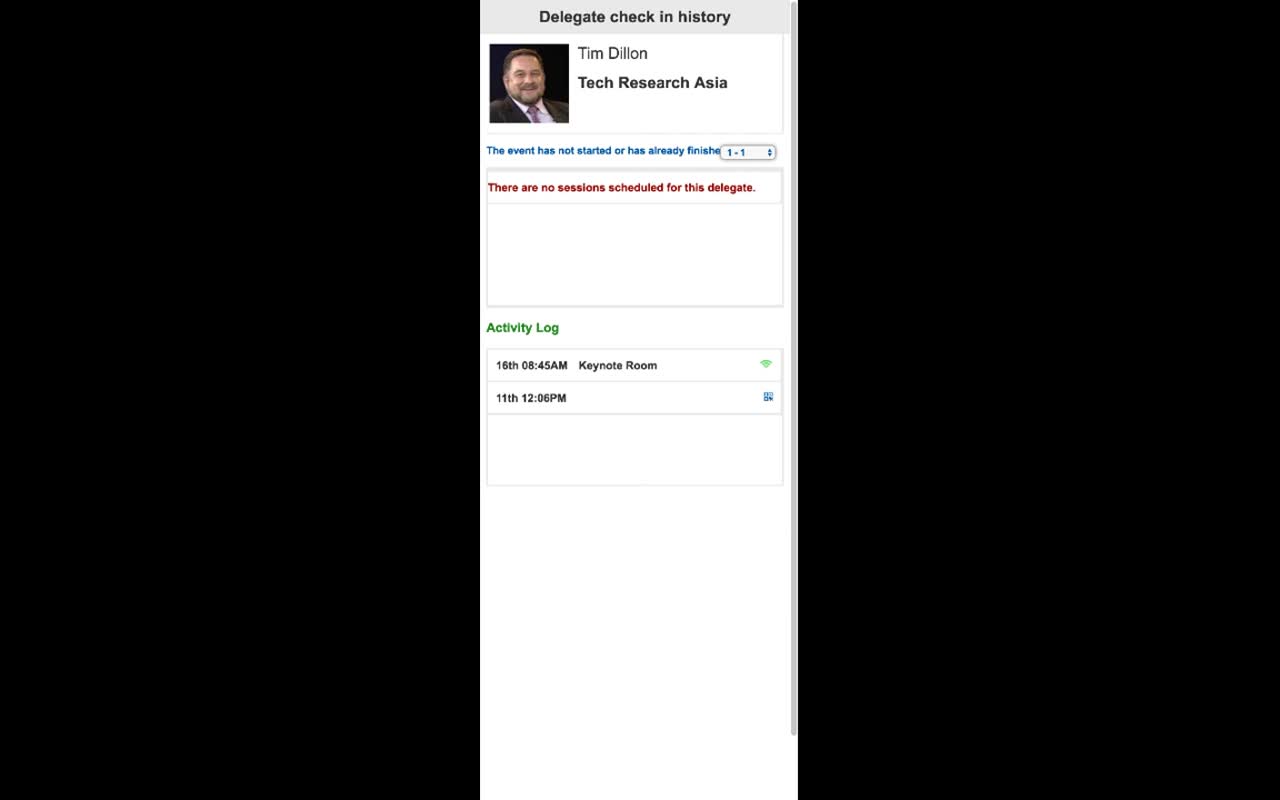
This is the source of truth when a question comes up about whether a particular delegate was at a particular session — every check-in is timestamped and attributed.
4. Roundtables — Mark Who's Attending 01:05 – 01:54
Same flow for any pre-scheduled session: pick the session, see the assigned delegates, tick who's there.
Narrator · 01:05 – 01:25 If you click on Roundtables, for each of the roundtable sessions, you can choose a session and then you have all the delegates who have been assigned to that session. From here, you can tick who is currently attending that session.
Narrator · 01:25 – 01:54 So you just tick on them, and the system automatically provides this data to the database, which you can then use for your reports after the event. It is the same for the workshops and also for the 1-to-1 meetings.
The pattern is the same for any session type:
- Open the section (Roundtables, Workshops, or 1-to-1 Meetings).
- Pick the session.
- The platform shows the delegates assigned by the matching engine (Module 9).
- Tick the ones who actually walked in.
Every tick goes straight into the database. After the event those records become attendance reports (Module 13 §6) — and feed the no-show flow (Module 13 §1) for any future event runs.
5. 1-to-1 Meetings — Live Status 01:54 – 02:43
For sponsors with packed days, staff can pull up their live itinerary and walk attendees to the right table.
Narrator · 01:54 – 02:18 For 1-to-1 meetings, if you have several partners or sponsors, you can see at any point of time what their itinerary is, who they're meeting, at which table, and what is the status of that meeting.
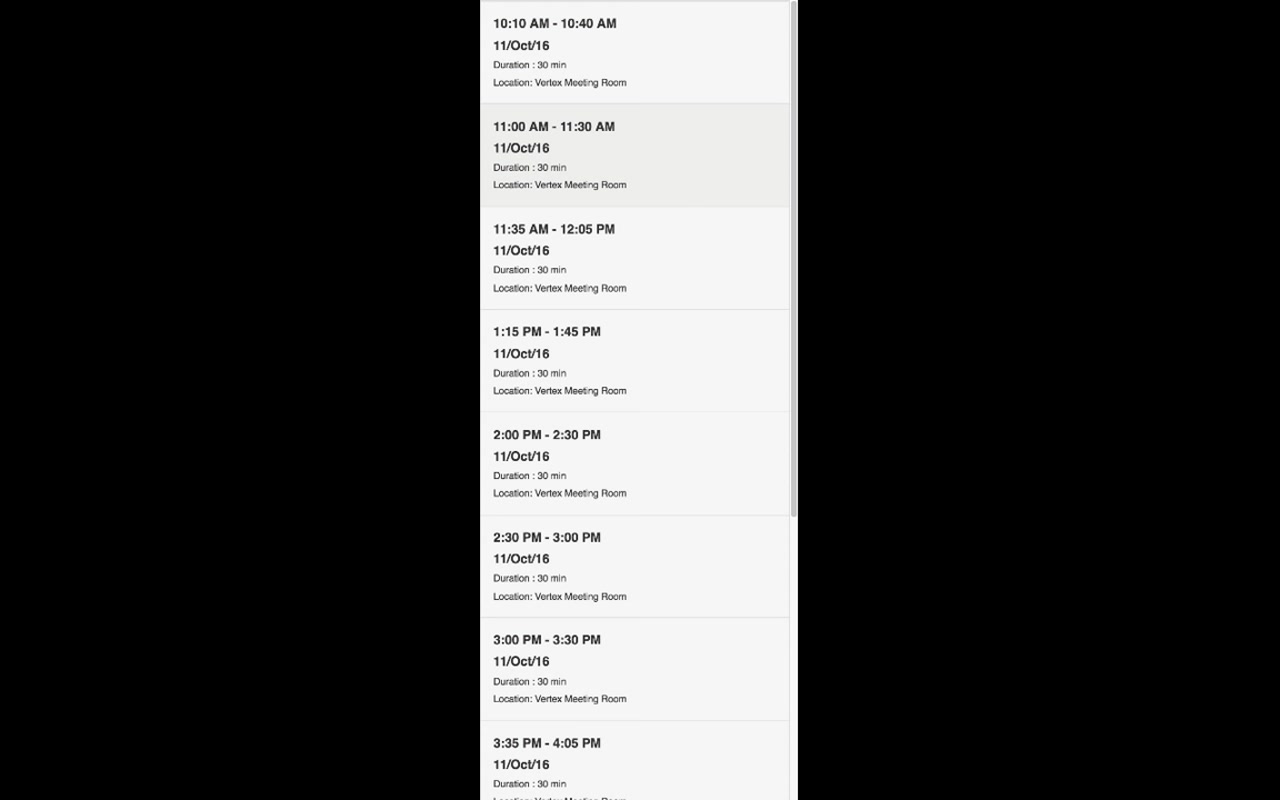
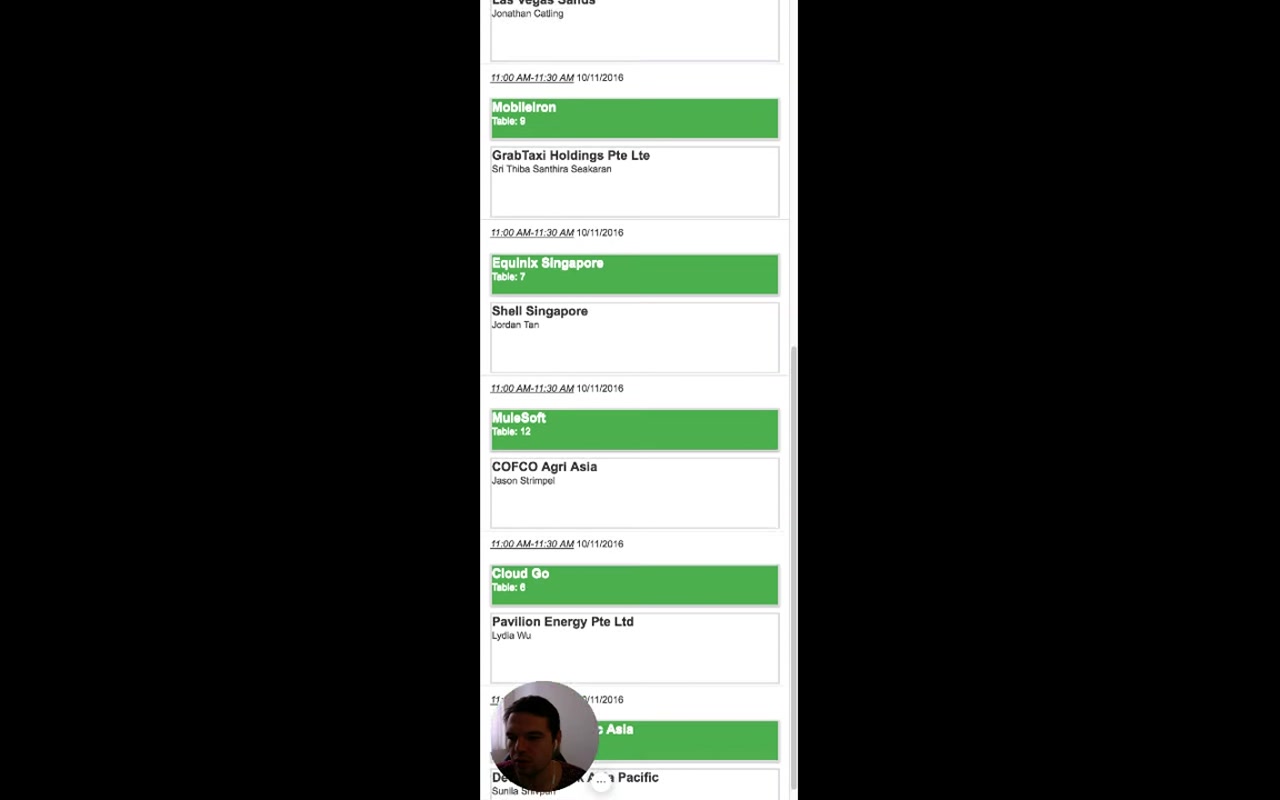
Narrator · 02:18 – 02:43 So this is very useful when you are onsite and when you need to navigate through and help attendees to reach their meetings.
6. Essence & Takeaways
The one-paragraph version
The staff variant of the mobile app is the same shell as Module 11 with one extra menu item — Staff Section — that opens the onsite operations tools. Check In / Out Delegates is a live list of every delegate with four status filters (No Status, Checked Out, Active, Not Checked In), per-row check-in / check-out actions, and a search field. Tapping a delegate opens a per-delegate Activity Log with every check-in event timestamped and tagged with the staff member and channel (WiFi / QR). The same pick-the-session-tick-the-attendees pattern works for Roundtables, Workshops, and 1-to-1 Meetings — every tap goes to the database and powers the post-event attendance reports. For 1-to-1s, staff can also pull up any sponsor's live itinerary and see exactly who they're meeting at which table — useful for walking confused attendees to the right place at the right time.
- Pre-event staff training (every screen here is what onsite operators will use).
- An onsite role checklist — registration desk uses Check In/Out; floor staff uses Roundtables / 1-to-1; etc.
- QA before each event: the four status filters, search, and check-in actions all need to work on real devices in venue Wi-Fi conditions.
7. Full Transcript
Verbatim narration provided alongside the video.